Client link
One link. No app. No login.
Your client follows the project and signs off on one page that stays current.
- Opens in any browser
- Nothing to install
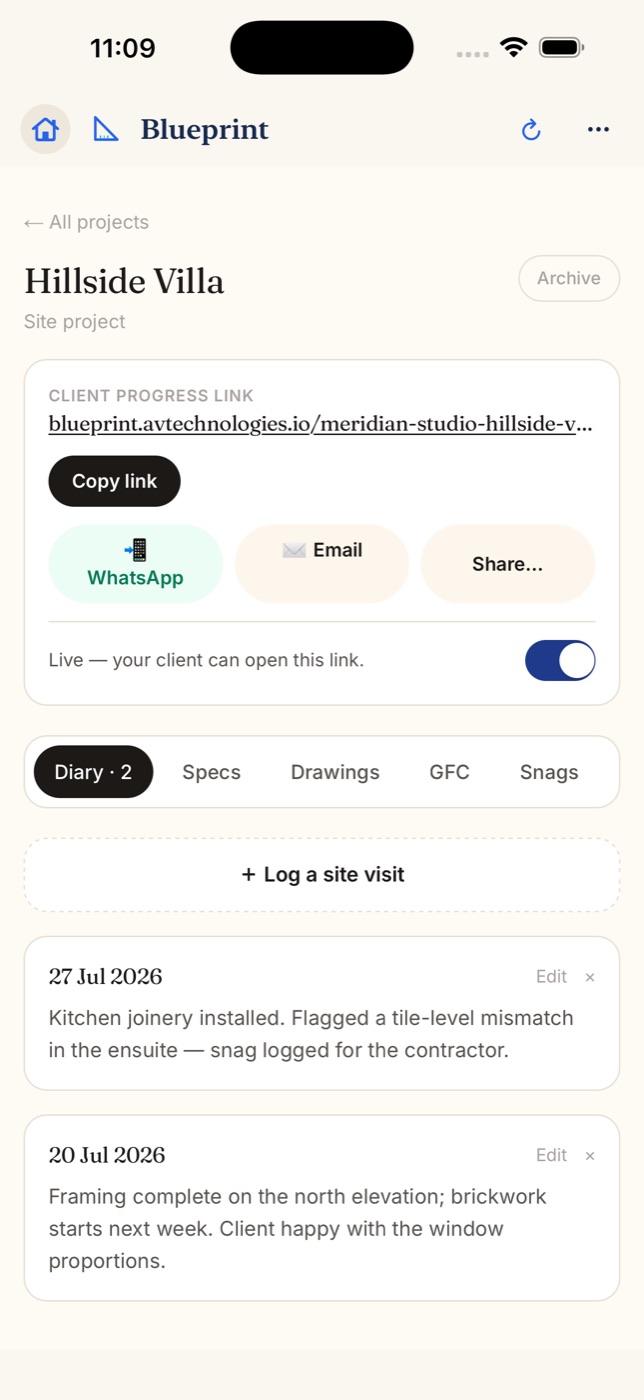
What your client sees
One page, always up to date
Steps they can follow
A small house builds up on the page as each step finishes.
Approve or ask for changes
Drawings, finishes and extra work, answered right on the page.
Draw right on a drawing
Your client circles the spot with a finger and adds a note.
Sign off each step
They type their name. The name and the time are saved.
Fees only if you want
Fee status shows only when you switch it on for a project.
Your studio on top
Your studio name and logo lead the page.
How it works
From your phone to theirs
Turn the link on
In the project's Client link box, flip the switch to Live.
Send it
Tap Copy, WhatsApp or Email. With your client's number saved, WhatsApp opens their chat.
Your client opens it
In any browser. Nothing to install, no account to make.
Hear back at once
The bell tells you when they approve, ask for a change or sign off.
FAQ
Client link questions
Which plan includes the client link?
The shareable client link is on the Pro plan and up. A new studio gets 7 days of the full Firm plan with no card, then the Free plan carries on with no time limit.
What happens if I turn the link off?
Your client sees a calm page saying it is resting for now and that their project is safe. Their answers, sign-offs and photos stay. Turn it back on and everything is there as before.
Can my client message me from the page?
Yes, if you want them to. Add your studio's WhatsApp number in Settings and switch on Show my WhatsApp on client links. The page then has a Message button that opens a chat with you.
Can I see the page as my client does?
Yes. Copy the link from the project's Client link box and open it in a private browser window.
Send your first client link
7 days of everything to start. No card needed.
More about the client link
A client portal without the portal
Clients of a design studio rarely want another app or another password. The client link is one web page per project that your client opens from a message. It works in any browser, there is no account to make, and it stays current on its own: anything you add shows up the next time they open it.
The page leads with your studio's name and logo and calls you their designer. A small Powered by AV Technologies credit sits at the foot. Your client's phone number never shows on it.
What your client can do on it
- Follow the stage plan: a small house builds up as steps finish, with how many things need them now.
- Tick off their own to-dos for the current step, and sign off a step by typing their name.
- Approve drawings and finishes, or ask for a change with a note. They can pin a note at an exact spot on a drawing, or draw on it with a finger.
- Follow each item from chosen to fitted, then say Looks good or Not right, with a photo if something is wrong.
- See the site visits and snags you leave visible, with before and after photos once a snag is fixed.
- Approve extra work before it starts.
Why not a WhatsApp group or a shared folder
A chat group mixes decisions with small talk, and approvals get lost in the scroll. A shared folder holds files but not answers. On the client link, each approval, change request and sign-off is saved against the right drawing, finish or step, and you hear about it the moment it happens: in the bell, and as a phone alert in the Blueprint app.
Sending it takes one tap. Copy the link, or share it by WhatsApp or email from the Client link box. Save your client's WhatsApp number on the project and the message opens straight in their chat.
You decide what is on it
Each site visit and snag can be shown or kept to your studio. Drawings in a stage plan stay hidden until you show them, or open on their own once an earlier step is done. Fees stay private unless you switch on Show fees on client link for that project.
The link starts on the Pro plan. From Studio, it also carries your website and social links and reads as your studio and project name instead of a random code. See pricing for each plan.